
Available on PRO and PLUS plans only
Setting a Schedule
- Sign in to your account via my.vrtly.ai
- Navigate to Content > Custom Content
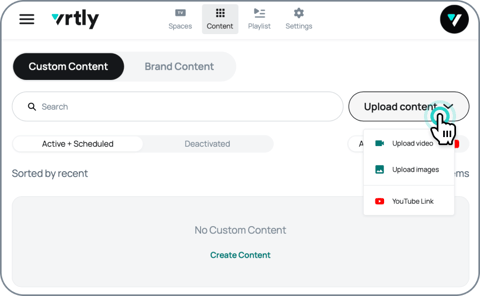
- Upload or import your content
- Select Set a Schedule
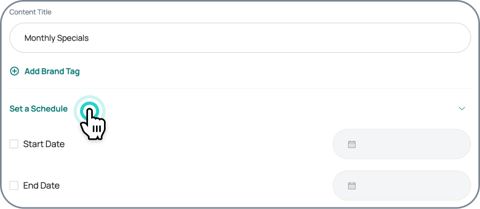
- Add a Start and/or End date and save
Start dates begin at 12:00 AM on the selected day.
End dates stop at 11:59 PM on the selected day.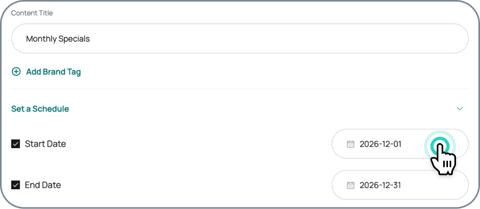
Schedule Statuses
Active
This content is currently showing on your screens.
You will see the expiration date if you set an end date.

Scheduled
This content is scheduled for a future date. It will appear in the Active + Scheduled tab, but will not play until its start date.

Expired
This content has ended and is no longer showing on your screens. It moves to the Deactivated tab, where it stays saved. To use it again, update the schedule dates.